
Browser Based Video Conferencing With No Download

A student opens the lesson link on a school laptop and gets an installer they have no permission to run. The class has started, the teacher is doing IT support instead of teaching, and nobody in the room can fix it, because the restriction was set elsewhere in the building. Browser based video conferencing with no download removes that failure, and it works because of a web standard rather than a vendor’s generosity.
What is browser based video conferencing with no download?
It is a video call that runs inside an ordinary browser tab using capabilities the browser already ships with. The person joining clicks a link, allows the camera and microphone, and is in. No installer runs, no admin password is needed, and no app store is involved.
The distinction that matters is whether a vendor treats the browser as the product or as a degraded fallback. Both get sold as “no download”, and only one survives a real lesson.
What is WebRTC, and why does it matter here?
WebRTC is a set of live audio and video capabilities built directly into every major browser, so a browser can send and receive real-time media without a plugin or an installed app. It became an official W3C standard on 26 January 2021, which is why a link opened in Chrome, Safari, Firefox or Edge can carry a class at all.
What WebRTC does not do is guarantee quality. It defines how media gets in and out of the browser, while the server behind the call decides how well twenty-five people in one room hold up.
Why do installs fail on school-managed and locked-down devices?
Because the device does not belong to the person using it. Managed school hardware is configured so ordinary users cannot run installers, and some of it cannot run a desktop installer at all. The download is not blocked because someone dislikes video calls, it is blocked because the point of a managed fleet is that software does not arrive without IT approval.
The ways this shows up in a classroom:
- Chromebooks have no installer to run. There is no
.exeand no.dmg. Zoom retired its dedicated Chrome OS app entirely, removing it on 1 February 2023 and pointing Chromebook users at a progressive web app instead. - Windows in S mode only runs apps from the Microsoft Store. Per Microsoft’s own FAQ, installing anything else means leaving S mode permanently. That is not a decision a student can make, or one IT will make mid-lesson.
- Managed Windows and macOS machines strip local admin rights. The installer downloads fine, then stops at a password box the student cannot fill.
- Supervised iPads often have the App Store hidden. When the mobile device management profile removes it, “just get the app” is not a step that exists.
- A brand new installer looks suspicious to Windows. We hit this with our own code-signed desktop build: SmartScreen warns about any recently released app until enough people have installed it. A twelve year old faced with a red security warning stops, and they are right to.
None of these is fixable by the teacher mid-lesson. Each is a ticket, and tickets take days.
Which video tools let you join in a browser with no download?
All of them have a browser path now, so the useful question is what it costs you in features and who it quietly turns away. Google Meet, Zoom, Microsoft Teams, Webex and Sonacove Meets can all be joined from a browser, but the conditions differ sharply.
| Tool | Browser join, nothing installed | Vendor-supported browsers | The catch |
|---|---|---|---|
| Sonacove Meets | Yes, students join from a link with no account | All modern browsers, desktop and mobile | Desktop and mobile apps exist for hosts, optional |
| Google Meet | Yes, guests can join without a Google account | Chrome, Firefox, Edge, Safari | Signed-out users are blocked by default from meetings on Education licences, with no admin setting to change it. Guests must also be admitted |
| Zoom | Yes, and sign-in is not required by default | Works best in Chrome, Firefox and Chromium Edge | The Join From Browser link is host-controlled, so it can be absent. Zoom states the web app has limited features next to the desktop client |
| Microsoft Teams | Yes on a desktop computer | Edge and Chrome (latest 3 versions), Firefox (latest 3), Safari (latest 2, macOS) | Teams for Web is not supported on mobile browsers or in VDI, so a tablet or phone needs the app |
| Cisco Webex | Yes, the web app needs no download | Chrome, Firefox, Edge, Safari, Chromium on Linux | Web app users cannot view a shared whiteboard, and screen sharing is limited to Chrome, Firefox and recent Edge |
As of August 2026. Vendor limits change, so check before relying on any row.
The row worth reading twice is Google Meet. A school on a Workspace for Education licence cannot admit a signed-out parent or a student on a personal device, and there is no toggle for it. If that is your situation, compare the alternatives to Google Meet for schools properly.
Why does the class still start late when nobody had to install anything?
Because browsers ask for camera and microphone permission per site, the first time that site tries to use them. The prompt is small, easy to dismiss by accident, and sits in a different corner in every browser. Meeting it in front of a waiting class is the worst possible time.
Worth knowing: browsers ask for camera and microphone permission on first use per site. A student meeting that prompt for the first time while the class waits is the most common cause of a slow start.
The failure mode is worse than a delay. If a student clicks Block, the browser remembers that answer, so rejoining changes nothing and the student sits there silent and cameraless with no idea why. The fix is the small camera icon in the address bar, then a reload. Teach that once and you never lose a lesson to it again.
Two habits remove the problem. Send the room link the day before so the prompt gets answered when nobody is waiting, and use a join screen that checks devices before entry.
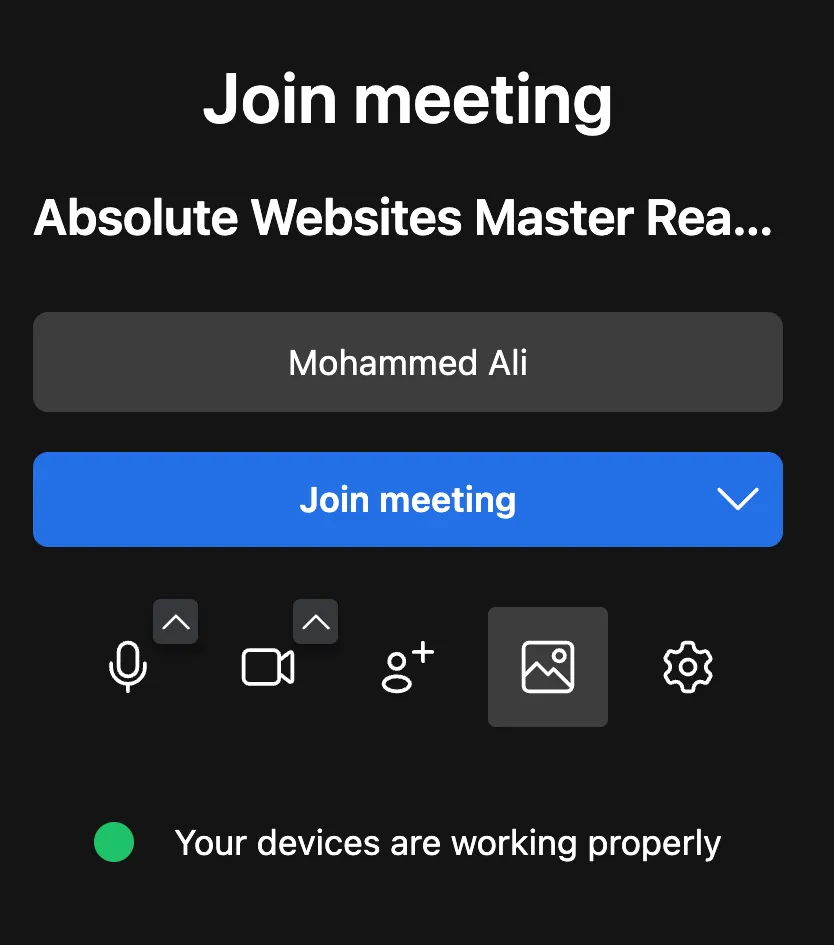
The student knows their setup works before they arrive, so nobody has to ask “can you hear me?” four times.
What should a school check before choosing a browser based tool?
Check the things that break on the day, not the feature list. A tool passes if a student on the oldest device in the building can get into a lesson from a link, and the teacher can run the room without leaving the browser.
- A student can join from a link with no account and no install
- The browsers your fleet actually runs are supported, tablets included
- The teacher can admit, mute, remove and promote people from the browser
- Screen sharing and the whiteboard work in the browser, not only in the app
- Joining works on the guest network and through the school firewall
- A student who blocked the camera prompt can recover without help
Score candidates on the platform comparison page, then test on a real school device rather than your own laptop. The gap between those two tests is where most tool choices go wrong.
Is installing an app ever still worth it?
For the person running the class, often yes. A host teaching every day gets a window that cannot be closed by a stray tab, permissions granted once during setup, and a steadier long session. Sonacove Meets offers desktop apps for macOS 10.15 and later and Windows 10 and later plus a mobile app, and all are optional.
For students the answer is no, and it should stay no. The moment a lesson depends on a student installing something, you have inherited every device policy in every home and school your students sit in. Keeping their path down to a link and one permission prompt is why our classroom features work in a tab first.
Zoom is straightforward about its web app having fewer features than its desktop client, and for a large webinar that gap is real. For a class of twenty it usually is not.
Related reading
- How to set up a virtual classroom, the first-session checklist this connects to
- Choosing an online classroom platform as a teacher, for the wider buying criteria