
Virtual Classroom for Small Schools
A school with six teachers and 120 students is not a small district. It is a different kind of organisation, and almost no classroom software is built for it. Choosing a virtual classroom for small schools comes down to a question that never appears in a feature table: who is going to run this on a Tuesday morning when something breaks?
What is the best virtual classroom for small schools?
The best one is the one a teacher can administer in the gaps between lessons. Below roughly thirty staff nobody has a full time technology role, so account creation, access recovery and setup time are the costs that actually bite. Feature lists barely separate the main options any more. Administration separates them enormously.
So score your shortlist on the work each option creates after the sale rather than on what it can do in a demo. That one change of criteria produces a different winner for most schools of this size.
Why do platforms built for school districts fail at small schools?
They assume roles your school does not have. Google Workspace for Education requires you to own a domain, verify it, and then wait while Google reviews your institution’s eligibility, which Google’s own setup guide puts at one to two weeks before you can create a single student account. Microsoft 365 Education expects a Microsoft Entra ID tenant, and its recommended route for creating student and teacher accounts is syncing a student information system through School Data Sync.
Neither is a bad product. Both are built on the assumption that identity is solved before teaching starts, which is true in a district with a directory and a service desk, and false in a school where the head teacher also handles admissions and the timetable.
The consumer end of the market has the opposite problem. A free Zoom Basic account hosts 40 minute meetings for up to 100 participants as of August 2026, which is fine for a tutorial and wrong for a double period, and it gives you no shared place to see what your other five teachers are doing. Small schools end up buying an enterprise system to escape that, then discover the enterprise system needs an enterprise administrator.
Who administers the platform when there is no IT department?
In practice it is the teacher who is best with computers, on top of a full timetable. That person’s real workload is a short list of recurring jobs, and any platform decision should be tested against those jobs rather than against a feature grid. Ask a vendor how each one is done and the differences appear immediately.
- Creating accounts in September, and again in October when three students start late.
- Getting someone back in when a password stops working thirty minutes before a parents evening.
- Adding and removing staff mid year without a billing conversation every time.
- Reassigning a class when a teacher goes on leave, so the link and the history stay with the class rather than the person.
- Fixing a broken join in the ninety seconds before a lesson, from a phone, standing in a corridor.
The largest single reduction in that workload is students not needing an account at all. In Sonacove Meets a student opens the room link in a browser, types a display name and joins, with no signup and nothing to install. Only teachers and admins occupy a paid seat, so the biggest account population in the school never enters the administration problem in the first place.
Getting a locked out teacher back in deserves a direct answer rather than a promise. Nobody at your school can reset a colleague’s password, the owner included. A locked out teacher uses the forgot password link and is back in from their own inbox, which is one fewer thing arriving in your one technical teacher’s messages at twenty to nine.
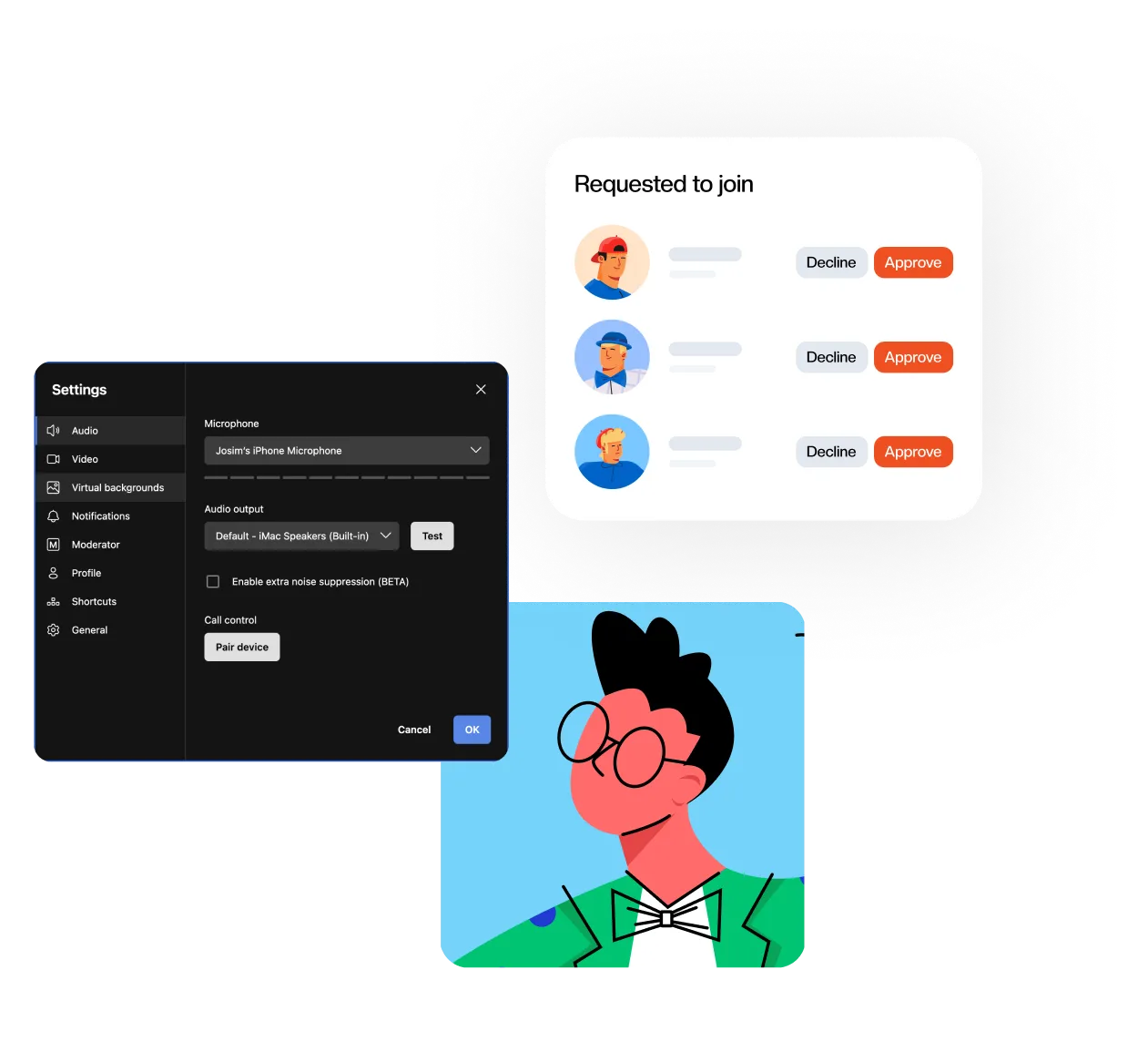
The other big reduction is giving teachers controls they can operate without asking anyone. Microphone and speaker selection, moderator settings and the waiting room queue all live inside the meeting, so admitting a late student or fixing the wrong input device is something the teacher does in five seconds rather than something that becomes a message to a colleague who is teaching.
How much admin work does each option actually need?
Roughly in proportion to how many accounts you have to create and then maintain. The table below compares what a small school has to do before its first lesson and where the ongoing work lands, which is a more honest basis for comparison than a feature matrix.
| Option | Setup before the first lesson | What a student needs to join | Where ongoing work lands |
|---|---|---|---|
| Google Workspace for Education | Own a domain, verify it, wait one to two weeks for an eligibility review | A school Google account, or approval from someone already inside the meeting | Admin console, one trained person |
| Microsoft 365 Education | An Entra ID tenant, ideally fed from a student information system | A school Microsoft account | Tenant admin, one trained person |
| Zoom Basic (free) | An account per teacher | Nothing, browser join works | Each teacher separately, under a 40 minute cap per group meeting |
| An LMS with built in conferencing | Courses and enrolment configured first | An LMS login | Whoever maintains the LMS |
| Sonacove Meets | Create the organisation, paste in teacher emails | A room link and a display name | Org owner, a few minutes a term |
As of August 2026. Vendor requirements change, so verify any row before you rely on it.
Before you commit, get a written answer to each of these:
- Can a student join without creating an account
- Who can restore a teacher’s access, and is it more than one person
- What happens to a class link when the teacher who created it leaves
- Can you add or remove a staff member without contacting sales
- Does the recurring schedule match your timetable, including day of the week and your timezone
- Is there a second person who can administer the account tomorrow
Worth knowing: we cap a recurring class schedule at one year from its start date. A room that repeats forever is a room nobody ever reviews, and school timetables change every year regardless, so the cap forces the decision at the point you were going to make it anyway.
What happens when your one technical teacher leaves?
Whatever you did not plan for. Two things decide how bad it gets: whether the account belongs to the school or to a person, and whether classes can be handed to somebody else without being rebuilt from scratch. Both are answerable in ten minutes during a trial, and almost nobody asks.
The common failure is a platform set up under one teacher’s personal email, with every recurring room created by that teacher. When they leave, the rooms either stop working or keep working under an address nobody can read, and the school rebuilds its timetable of links in the middle of a term.
Sonacove Meets covers this in two places. Ownership of the organisation can be transferred to another member from the organisation settings, and an individual room’s host can be reassigned to another teacher, after which that person owns the booking. The room keeps its link and its history, which matters because a class link that changes mid year is a link every parent has to be told about again.
Name a second admin on the day you set the school up. It takes about a minute and it is the only part of this you can fix in advance.
Does a small school need single sign-on?
Usually not. Single sign-on earns its keep when you already run an identity provider that staff sign into for other things. If you do not have one, adding one creates exactly the administrative job you were trying to avoid.
We say this while shipping the feature. An organisation owner or admin can connect an OIDC identity provider to Sonacove Meets, with role mapping so people arrive as a teacher or an admin on first sign in and join the organisation automatically. For a school already standardised on Google or Microsoft accounts that is real value, because it takes password resets off one person’s list. Worth knowing before you plan around it: the connection is OIDC only today, and removing someone from your identity provider does not remove them from the organisation, so leavers still need handling by hand.
The alternative is less impressive and less work. You paste a list of email addresses, choose a role, and each person receives a link that puts them into the organisation. Invitations stay valid for 60 days, can be resent in bulk or revoked, and anyone who has not accepted stays visible as pending, so you can see who is missing without asking around. A whole staff can be onboarded in one sitting, and setting up the first virtual classroom takes longer than inviting everyone to it.
How do you tell whether the rollout is working?
Watch adoption, not feature usage. A month in, the number that matters is how many of your teachers have actually taught in it compared with how many seats you are paying for. Everything else is detail.
The organisation view reports active teachers as a count against the seats you hold, alongside active students, total meetings, host minutes and average retention, plus an adoption trend across whatever date range you pick and a per teacher breakdown. If four of your six teachers have never started a session, the problem is training or timetabling rather than software, and no upgrade fixes it. That is a far more useful thing to learn in week three than in June.
Detailed analytics is currently limited to organisation owners and admins, with a teacher facing view still in progress. For most small schools that is the right default, since the person reading the numbers is the person who set the school up, but it is worth knowing before you promise a colleague their own dashboard.